Showing posts with label usb drive. Show all posts

Thursday, November 24, 2011

Backup And Synchronize Data with DropBox


When you work using a computer, you have to deal with so many files that are the result of your work. Set up multiple files is not easy. For example when you have to edit some files there, then you want to update your database with a few files that you just edit them. Doing this kind of update manually must be very confusing. To be able to synchronize these with ease, you should use a special program.

Dropbox is a program to synchronize files are very simple and elegant. But, this program is not the solution to synchronize files or folders from several different computers. Dropbox synchronizes only on files that exist in one folder. To be able to use Dropbox, you must first register on his official website www.dropbox.com. Then, you must download and install the client program provided. This program will create a folder called "My Dropbox" in your Documents folder. To be able to open the folder, you can click the system icon tray is available.

Dropbox does not synchronize files on your computer. This application synchronizes on the cloud servers. So, you should always connect to the internet while using Dropbox. This is very advantageous. You can access all the files in your Dropbox from several different computers, provided that the program Dropbox is installed there. You can also access your files using the web interface provided by Dropbox. Dropbox web interface is very simple and easy to use. If you frequently use Facebook, you will have no difficulty in using it because the Dropbox web interface very similar to Facebook.

When you register to be able to use the program Dropbox, you can choose several types of Dropbox. If you choose Dropbox Basic, you'll get 2GB of storage capacity. If you are willing to pay as little as $ 9.95 per month, you can use Dropbox Pro, which provides a storage capacity of 50GB. You do not have to bother to update the program Dropbox, since this program will update itself automatically.

Monday, November 7, 2011

USB flash Xbox 360 : Special for Game Console


SanDisk has made a flashdisk Xbox 360 for game console Xbox 360, allows users to save games, download content such as access to multimedia files without the need for disk media. This flash provides convenience and comfort for users who want to play your favorite games directly from the flash is like playing a console game on Xbox 360.

However, USB flash Xbox 360 requires the setting of the bit before it can be used in PCs. Users can purchase a USB flash Xbox 360 with a capacity of 8GB and 16GB for $ 35 and $ 70

Tuesday, July 5, 2011

Intel Atom Cloverview for Windows 8

Parties Intel acknowledged that it was preparing a Cloverview Atom processor and Clover Trial coincides with the advent of Windows 8.

As quoted by Electronista, Tuesday (28/06/2011), "Intel hopes that the chips and software upgrades can increase the power of Microsoft software for Windows 8 ARM," said Bill Kircos, Public Relations Director of Intel products and technologies.
Windows 8 (foto : Google)
Intel also plans to get the Atom architecture in many models use Atom in 2012 as in tablets, netbooks, slider device and other future products that build on the Atom chip 32nm (nanometers).

Furthermore, Intel hopes will reduce power consumption and increase the battery usage. Clover Trail is currently expected to appear in early 2012 to combat the threat of quad-core NVidia "Kal-El" and the ARM Cortex A15, not to mention Apple's future chips that may be developed better for 2012.

Kircos said, "Platform Cloverview will meet or Windows 8 to win the international market, and can provide a more compelling reason for consumers to upgrade to newer hardware."

It seems that the appearance of Windows 8 will have a complete package with sophisticated technology as described above. However, we still have to wait for the operating system is released by Windows

Thursday, June 30, 2011

How to make Internal hard drive become external hard drive

Here I am not talking about an external hard drive, but will be discussed how the existing internal hard drive on pc can be used as an external hard drive or portable hard drive that can be taken anywhere and used without plugging in the pc, but simply by using usb plugs.

Certainly would not use any software, because there is no relation. Shocket was also not alter the existing on the hard drive. But by using additional data cable, the USB 2.0 TO SATA IDE CABLE or also called SATA / IDE TO USB CONVERTER CABLE. This enhancement serves to connect the hard drive of the connection with type sata or IDE to USB connection.

This data cable you can buy in computer shops, USB 2.0 TO SATA IDE CABLE This can also be used to connect the cd / dvd rom with a computer or a laptop or netbook. This is certainly very helpful for users of netbooks / laptops are missing cd / dvd rom to do the install windows or open a file from a cd or dvd copies.


for those of you who have unused hard drive or want to increase disk volume capacity dikomputer, or if a friend needs a lot of files that must be taken, USB 2.0 TO SATA IDE CABLE can be one alternative to try.


Wednesday, June 22, 2011

Install antivirus in your flashdisk

Safety and "health" computer is absolutely expected and required by all computer users to use computers in their activities become more comfortable and safer. Many ways and the way computers are used in order to remain healthy and in fit condition and performance. One is to prevent attacks from malicious viruses by using antivirus always updated of course. Of the many ways the spread of viruses that infect computers, the most widely and efficiently is through storage media or removable disk (flash).

Virus infected flash will easily infect other computers when the flash is plugged in and then accessing or opening a file in flashdisk. From one computer to another computer flash is taking computer virus which then spread it to others.

For the safety of virus attacks from flash, it is recommended that before accessing the flash is always on and always do the scanning of the flash. Rely on antivirus alone is not enough. Sebaiknyalah friend try this one tool that truly free and portable, so do not overload the computer's performance. And again it is also powerful tools to clean the virus contained in the flash, because this tool is dedicated to eradicate the virus in flash, not on my hard drive. Some examples of viruses that attack through the flash is autoruns.inf, auto.exe, autorun.ini, ctfmon.exe, copy.exe, Macromedia_Setup.exe, ntde1ect.com, New Folder.exe, soundmix.exe, svchost.exe, semo2X.exe, windows.scr and others.


This tools is only 746 KB is called ninja pendisk. When running this tool will run on the system tray and can be set to run at startup, automatic clean and disable autoplay by right clicking on the icon in the system tray. Kerjanyapun very easy way. run this tool and then plug your flash, then this tool will work immediately and clean the flash of a virus is identified.

If you curious and intend to try it can download at the link below:


Thursday, June 2, 2011

Tools to Repair USB drive

There may be instances when the USB drivers were damaged and as a result you may not be able to access data. the data on your USB drive, most people do not know and confused how to fix your problem. Court Registry Repair is a tool and a USB portable simple and useful freeware for Windows that allows you to repair and reinstall all USB drivers. Apart from repair the USB ,you can also make other improvements such as TCP / IP ,reset winsocks proxy ,registry and disable auto run on Windows.


The way is you check the features you want to fix it and click the FIX button.

Features;

* Reinstall All (USB Device) Drivers
* Reinstall All (USB Drive) Drivers
* Enable USB Drives
* perfectly Disable Autorun
* Change the default installation folder Programs
* Enable Task Manager
* Fix Show Hidden Files and Folders
* Reset and Reinstall TCP / IP
* Reset Winsock
* Fix Check Disk Problem
* Enable Command Prompt
* Enable the Registry Editor
* Enable Folder Options
* Fix (. EXE. reg. txt) Files Association
* Fix Safe Mode
.

Download the this software to fix the issue above :
http://mrksoftware.blogfa.com/post-8.aspx

Tuesday, May 24, 2011

How to make USB drive can not be accessed by computer

USB removable media or people who interpreted the flash is a means of sharing files and media file storage is a practical and inexpensive. Prices are relatively affordable and form a relatively small, are now almost everyone has a flash. On the other hand because of the many users of the flash, the flash is one of the media dissemination of computer viruses is quite powerful. In addition, the flash can also be a means or media to take or steal important files that exist on a computer. So that sometimes for some users, the use of flash in computers is even disabled. That is, every time the flash is plugged into the computer, the computer can not access the flash, even just to open the activity data. There is another part that users set their computers can only read documents diflashdisk alone while to save or copy and paste files to the flash is not able or declined. It is intended for computer data security in order not to be taken by someone using the flash (USB removable media).

To set the flash is not open on the computer on Windows 7, can be done using a simple trick below:

  1. Press the Ctrl + R to open the Run menu
  2. Type gpedit.msc and press enter to go to the windows group policy
  3. Go to User Configuration> Administrative Templates> System> Removable Storage Access
  4. In the right pane double-click on Removable Disks: Deny read access
  5. Change to Enable and click OK
  6. Close the Group Policy window and then restart or log off the computer.

Now if you want to open or access the flash, it will display a message ... .. which ultimately can not access the flash.


To set the flash can only be opened and read only file on Windows 7, but can not copy and paste or save the data, can be done by using the trick below.

  1. Press the Ctrl + R to open the Run menu
  2. Type gpedit.msc and press enter to go to the windows group policy
  3. Go to User Configuration> Administrative Templates> System> Removable Storage Access
  4. In the right pane double-click on Removable Disks: Deny write access
  5. Change to Enable and click OK
  6. Close the Group Policy window and then restart or log off the computer.

Now if you want to copy and paste files to the flash or save files to the flash can not will not be anymore.

Another way that is not less easy it is (For users of Windows XP) can be tested by using a software, which is write-protected usb. That is software that controls access to a computer flash, between can be accessed or not. If shobat willing to try can be downloaded at the following link:

http://u3xqb.tk/

Wednesday, March 16, 2011

Flash Disk / USB Drive not detected

Maybe we never experienced anything like the above title. When the flash is plugged in, sign a usb drive on the taskbar also appears, but when we opened the windows explorer was the flash does not show up or not detected.

Perhaps the method below can help to solve flash shobat not detected:
  • Changing
  • the flash to be enabled.
  • Flash not detected could be because the flash is in a state of disabled. To make the flash is so enabled, it can be done through device manager.
  • After the flash is plugged in, open the device manager. To open the device manager there are several ways. The first way to right-click [MyComputer]> [Properties]> select the [Hardware]> [device manager]. The second way is to right click [mycomputer]> [manage]> [Device Manager].
  • Once the device manager window appears, click the [+] in the [disk drives].
  • Then will come the disk that is being installed computer, both hard drives and flash. If the flash drives have a red cross sign, it means the flash is in a state of disabled. To change this done right click on usb flash drive and then select [enable].

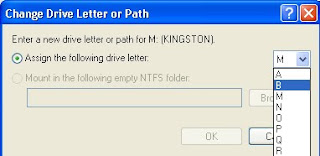
  • click [change]. In the window that appears change the drive letter to an unused letter. Click [OK], click [OK]


Now open windows explorer, flash comes with a different letter of the previous path.