Friday, March 18, 2011

Wash Baby Clothes safely

Washing baby clothes are different from adult laundry. Babies are generally more sensitive to some specific chemicals used in the washing process, for it required special handling in washing baby clothes, especially the newborn. Here are some tips that might be useful for mother in baby's mother wash clothes.

Baby's skin is more sensitive

Baby’s skin is very sensitive and more sensitive than adult’s skin. Some ordinary clothes washing detergents often makes her skin rash, and cause irritation and itching. Therefore it is advisable for mothers to use a special detergent to wash the baby's layette. Yet the content of detergent without perfumes and dyes are also proven to be quite safe to use to wash your baby clothes. Perform 2 times for rinsing when washing detergent remnants are not left behind in clothes.

Use a detergent that is safe for infants

Soaps and perfumes are the cause of an allergic reaction most often occurs in newborns, which can even occur also in adults. For that if it looks infants allergic skin reactions such as skin redness, irritation, and rashes after wearing freshly washed clothes, could be the baby's mother that the mother is allergic to detergents used to wash the clothes. Immediately consult the pediatrician to be given treatment and stop the use of detergents.

Use dryer

Many women fear baby clothes shrink if dried in the dryer, yet they rarely occur if the mother handle it correctly. Use the lowest temperatures when drying baby clothes in the dryer to avoid shrinking clothes, baby clothes and make it look fresher.

Avoid use of softener and freshener clothes

Softeners and fragrances for clothing is not just one of the cause of irritation and allergies in babies, but also can cause serious impact on health. Notice also the use of softener and freshener on your clothes by making sure that you rinse it with clean, because it is quite possible that behind the rest of softener can move into your baby's clothes. If you must use it, make sure it is safe for your baby.

Wash clothing before use


Make sure you first wash clothes, diapers, blankets, bed linen to your baby before she was to wear it for the first time. Chemicals are left on the clothing production process can cause skin irritation on your baby. Likewise dyes used may have faded when exposed to sweat baby.
Separate clothes from adult laundry

Separate Your baby's clothes with adult laundry


This is very advisable to separate your baby laundry with adult laundry. You can use different laundry bag to separate them to avoid the germ will transfer from the adult laundry to your baby laundry. Stephen Joseph is one of creative person who have designed for any model of laundry bag and also school backpack for your kids.


Avoid bleach

Avoid using bleach or detergents containing bleach to wash baby clothes. Bleach chemicals in clothing can cause skin irritation is more severe in infants who can make their skin suffering from eczema.

Dallas Landscaping

Wednesday, March 16, 2011

Flash Disk / USB Drive not detected

Maybe we never experienced anything like the above title. When the flash is plugged in, sign a usb drive on the taskbar also appears, but when we opened the windows explorer was the flash does not show up or not detected.

Perhaps the method below can help to solve flash shobat not detected:
  • Changing
  • the flash to be enabled.
  • Flash not detected could be because the flash is in a state of disabled. To make the flash is so enabled, it can be done through device manager.
  • After the flash is plugged in, open the device manager. To open the device manager there are several ways. The first way to right-click [MyComputer]> [Properties]> select the [Hardware]> [device manager]. The second way is to right click [mycomputer]> [manage]> [Device Manager].
  • Once the device manager window appears, click the [+] in the [disk drives].
  • Then will come the disk that is being installed computer, both hard drives and flash. If the flash drives have a red cross sign, it means the flash is in a state of disabled. To change this done right click on usb flash drive and then select [enable].

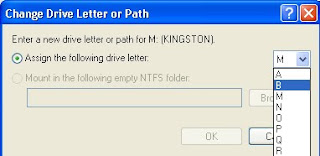
  • click [change]. In the window that appears change the drive letter to an unused letter. Click [OK], click [OK]


Now open windows explorer, flash comes with a different letter of the previous path.

How to disable Control Panel in Your computer

At this opportunity, which we will discuss about how to disable control panel. By disabling the control panel, then the command on the start menu control panel will also not be visible. Therefore, users will not be able to access the control panel, although by using the command through [Run].

For computers that use a lot of user and admin shobat is, probably a good idea to disable the control panel as well. In addition to avoiding change settings on the computer, also can be a computer security reasons. But if computers are used in private, then let the control panel remains active.

To disable the control panel can do the following steps:

1. Go to group policy editor by clicking [start] and then type gpedit.msc and press [Enter]. In windows xp can be done by [start]> [Run]> type gpedit.msc> press [enter].
2. After appearing Local Group Policy Editor window, go to the [User Configuration]> [Administrative Templates]> [Control Panel].
3. In the right pane double click on [Prohibit access to the Control Panel].

4. Set up or set on the option [Enable] and click [OK].


5. Although the control panel is not accessible, you should log off or restart your computer.

6. If we forced his way into the control panel through the [Run], it will display a notification like the following picture: This operation has been canceled due the restrictions in effect on this computer. Please contact your system administrator.


7. To restore the original condition, or to re-activate the control panel, perform steps 1 through four. Change back to the settings from enable to not configured and click [OK].

Thus the tips about how to disable control in your computer. I hope this tips will be useful for you.

Friday, March 4, 2011

How to uninstall the program in safe mode

Safe mode is one feature of the Windows operating system that is very useful to make repairs errors or problems that occur in the system, which can not be done at boot normally. The problem often faced is a problem usually associated with the virus, or system instability, computer often hangs, the computer can not boot normally. Many are recommended to perform a virus scan in safe mode condition, make changes in regedit or it could be to restore the conditions prior to the problem / damage by using system restore.

To get in on safe mode can be done by pressing the F8 key on your keyboard when the computer is booting. By using the navigation buttons or the up and down arrows select Safe Mode then hit enter.

In the safe mode, not all features and services can be run such as during normal conditions. For example, we can not uninstall a program when in safe mode. This is because computers can not access the windows installer service. If we do the uninstall command in a program in safe mode, it will display a message like the picture below.


“The windows installer service could not be accessed. …… “

to be able to uninstall the program in safe mode condition, it is necessary to do a little setting in the registry editor.

Go to the registry editor by clicking Start, then type "regedit" and press enter.

Once the registry editor window appears, go to HKEY_LOCAL_MACHINE \ SYSTEM \ CurrentControlSet \ Control \ SafeBoot \ Minimal

Right click on the folder at a minimum, then select New and click Key.


Name the key is MSIService

In the right pane double click on default and change the value data into Service


Close the registry editor window.

To enable windows installer service in safe mode, you need freeware or tools that are named SafeMSI. Download it on the link below.

After that double click on the freeware, and now you have windows installer service is active.


now you can uninstall the program in safe mode condition.
Link download SafeMSI: http://bit.ly/SafeMSI

How to disable keyboard button

At some time ago I've posted about how to lock mouse and keyboard with ease by using the tools kidkeylock. To remind me that by using the tools that we can do kidkeylock locking the mouse and keyboard with a variety of locking options. for locking the mouse we can do left click, right click and roll the middle, while on a keyboard that can be done is to lock the key or certain keys or language. If you want to see our full page mode can be opened on disabling the keyboard and mouse.

At this opportunity gretonger will present how to disable the buttons on the keyboard which of course is almost equivalent to the tools above, but there are still differences and functions. To disable the buttons on the keyboard manually we have to understand about the code map of the keyboard functions on the data value in the registry editor such as code scan code map caps lock button on the keyboard layout: 00000000 00000000 02000000 00000000 00003A00. In order not to function or change functions, the code must be changed according to the expected function. Rather than bother to think about the code, already available tools that serve to disable the buttons on the keyboard. In addition to disable the keyboard, these tools can also be to alter the function keys on the keyboard.

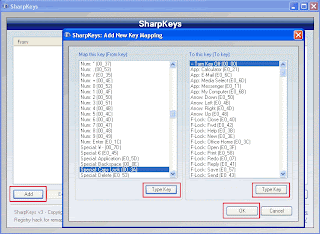
With a tool called sharpkeys, we can turn off or disable the Caps Lock, windows, Alt, Function keys (F1 through F12), the Ctrl key, numeric keys and so forth. In addition, this tool can change the keyboard function keys such as changing the functions of the Caps Lock key me.njadi letters or numbers, change the tab button to the enter key and so forth. For more details, see the following screen shot:


How to use it are as follows:

1. This tool is portable so that direct double click to run it.
2. Once open click the add.
3. In the left panel is a series of codes that the keyboard buttons will be disabled or altered function. or can simply click the type of key and press the button on the keyboard.
4. In the right panel is a series of functions to disable or change the functions of a keyboard button or click the type of key and press the button on the keyboard
5. Once selected click on the write to the registry
6. log off or restart the computer
7. To restore to its original condition, remove or delete an existing command and then click write to registry


Who want to try please download the link below:
http://nzlzp.tk/