Saturday, March 19, 2011

Google help Japan earthquake Victims by launching Google person finder

Google is one of the most influential companies out there when it comes to the online world and now, they have launched a special version of the People Finder applcation that is made especially in order to help the victims of the terrible earthquake that hit Japan last week.

The service that has been launched on the Google website acts as a directory and message board for the people affected by the earthquake. The idea of the service is that it will help people that have been affected by the earthquake to find their loved ones who are currently missing in the country. The message boards will allow people to post notes saying that they are safe and their loved ones will be able to open a search for a missing person.

The system has been designed especially to be able to be embedded on other websites, making sure that the service gets as much attention as possible. Since it was launched just a few hours after the quake struck the area on Friday, there have been more than 4,000 records entered into the system. In the past, the same style of system from Google has proved extremely useful in finding missing people and it is hoped that the same will be said for the service for the Japan earthquake.

If you are currently looking for someone in Japan that is missing or you are unsure if you have been named missing yourself, head over to the Google site and file a report.

How to fix Lag Spikes in Starcraft 2 SEA Server

Have you ever played multiplayer games in Starcraft 2 and experienced lag spikes? Lag spikes so unbearable that the games are already unplayable and unenjoyable? Lag spikes that appear so often that you can’t decently micromanage your units? What’s worse is that sometimes the lag spikes in Starcraft 2 already disconnect you from the game?

Let’s first clear the scope of what we’re here to discuss. What we’re going to tackle are lag spikes and how to deal with them in Southeast Asia, Australia, and New Zealand region server (SEA/ANZ) – or most popularly known as SEA Battle.net server. I won’t be discussing lag spikes in the North America or NA Battle.net server.

If you don’t know what Battle.net server you’re on, you can check the box. The edition of the game should be indicated there.

Lag Spikes Starcraft 2 SEA Server graphic01

Check the top right portion of your box to see if you’ve bought the SEA edition


What are the Causes of Lag Spikes?

Lag spikes occur due to three factors that I know of:


1. Lag Spikes due to a Choppy or Unreliable Internet Connection

Most if not all instances of lag spikes during multiplayer games in Starcraft 2 can be attributed to a suddenly slow or choppy Internet connection. Let’s face it: there are days when our Internet connection is simply unreliable. Even though your Internet provider has given you a 12mbps connection (I’ve run SC2 in 1mbps and 512kbps and it still runs great in multiplayer), sometimes, they encounter problems that compromise the quality of the connection they provide you.

To check/verify if your Internet connection is the culprit for the lag spikes, we’ll need to perform a Traceroute to the Starcraft 2 SEA server.

A traceroute to the SC2 SEA server would give us an idea on how our computer is connecting to the SEA server. It would give us an idea on many hops (or places) it goes to at first before eventually reaching the SEA server and if there are any problems in between.

To be able to do this in Windows, go to Start -> Programs -> Accessories -> Command Prompt. The Start icon is usually located at the bottom left of the screen with the Windows logo.

Once you open Command Prompt, a new window would appear with a black screen. Just typetracert 202.9.66.76 and then press the Enter key.

Now if the first few traces (or lines) show an asterisk(*) or an error like on the traceroute example below, then you are most probably just encountering a choppy and unreliable Internet connection.

Lag Spikes Starcraft 2 SEA Server graphic02

Asterisks(*) on traceroutes tells us that our computers can’t connect or did not receive a response on the IP address or destination you are trying to contact (which are the IP addresses at the right side).

So the asterisks(*) in the first 3 traces actually tell us that we are not receiving responses from our Internet Service Provider (ISP). Ultimately this tells us that the ISP that you are connected to is having problems or is presently unreliable. This would now affect subsequent connections or hops to the SEA server resulting to lag spikes.

Another traceroute illustrating this is below:

Since a bad Internet connection would not just affect Starcraft 2 but also your browsing and other Internet related activities, it may be a good idea to raise this to your ISP by calling their customer service or technical support. Sometimes, a simple reset of your router would solve the problem. Sometimes, you just have to wait it out.

Take the usual steps first in fixing your Internet connection. If you can’t fix it yourself, it’s best if you can call your ISP about it.


2. Lag Spikes due to your ISPs Connection to Starcraft 2 SEA Server

If you experience lag spikes all the time (and I really mean all the time), but have a seamless Internet browsing experience, and play other multiplayer games without any lag spikes – then most probably the lag spikes you experience in SC2 is because of how your ISP is connecting to the Starcraft 2 SEA server

Again if we do a traceroute to the Starcraft 2 SEA server, (tracert 202.9.66.76), you would most probably have a trace like below:

Notice the asterisks(*) on traces 5th and onwards? This tells us that our computer is having a hard time going to the reach.com servers – which seems to be the servers that our computers need to hop or pass through before going to the Starcraft 2 Battle.net SEA server.

I’ve read several reports of other people in forums complaining that they always experience lag spikes in SC2 and when they eventually do a traceroute, they are having problems connecting to the reach.com servers.

We can try to solve this problem in two ways. One is to do a traceroute, save it to a file (or make a screenshot), and raise it to your ISP. If your ISP would listen to you, they would do something on their side to fix the problem so that you would be able to connect seamlessly to the SC2 SEA servers (or to the reach.com servers which is prior the SEA servers).

Another is to complain to Blizzard/IAH games (IAH games is partnered with Blizzard for the Southeast Asia Edition). Although this is a long shot, they MAY be able to do something. Blizzard/IAH games may opt to move their servers to another location (SEA servers are in Singapore by the way), or they may add other Battle.net servers. As I said, this is a long shot. The best bet for you is still to raise your concern to your ISP.


3. Lag Spikes due to the Starcraft 2 SEA server itself

Sometimes, lag spikes are due to the problems in the Starcraft 2 SEA servers themselves. The servers may sometimes encounter problems that could degrade the quality of the gameplay in SC2.

I haven’t experienced this personally but some people have claimed in the official SC2 SEA forums that this sometimes happens on peak hours – as many people are logged in during this time.

I think for these kinds of situations, we just need to inform Blizzard or IAH games for them to improve the quality of gameplay. However, I’m pretty sure they’re already improving their servers even if we don’t tell them as Battle.net is their main selling point in SC2. When they removed LAN play in SC2, they said Battle.net was a more than able replacement for it.


Note
: I didn’t include anymore the reason wherein your firewall might be degrading your connection from SC2 to the Battle.net SEA servers. Windows firewall and most third-party software usually ask the user if they would allow Starcraft 2 to communicate through the Internet – and then they would automatically open the necessary ports for SC2 to work. If a firewall is somehow blocking SC2, I think you wouldn’t be able connect to SC2 entirely.

However, to be absolutely sure, it would still be best to check your firewall settings, especially if you have a third-party firewall software installed.

There you have it. These are the three most probable reasons in lag spikes in Starcraft 2 SEA server. I hope I was able to enlighten and somehow help you in making your Starcraft 2 multiplayer games more enjoyable and lag spike free.

Source : http://www.techiechips.com/lag-spikes-starcraft-2-sea-server/

Friday, March 18, 2011

Wash Baby Clothes safely

Washing baby clothes are different from adult laundry. Babies are generally more sensitive to some specific chemicals used in the washing process, for it required special handling in washing baby clothes, especially the newborn. Here are some tips that might be useful for mother in baby's mother wash clothes.

Baby's skin is more sensitive

Baby’s skin is very sensitive and more sensitive than adult’s skin. Some ordinary clothes washing detergents often makes her skin rash, and cause irritation and itching. Therefore it is advisable for mothers to use a special detergent to wash the baby's layette. Yet the content of detergent without perfumes and dyes are also proven to be quite safe to use to wash your baby clothes. Perform 2 times for rinsing when washing detergent remnants are not left behind in clothes.

Use a detergent that is safe for infants

Soaps and perfumes are the cause of an allergic reaction most often occurs in newborns, which can even occur also in adults. For that if it looks infants allergic skin reactions such as skin redness, irritation, and rashes after wearing freshly washed clothes, could be the baby's mother that the mother is allergic to detergents used to wash the clothes. Immediately consult the pediatrician to be given treatment and stop the use of detergents.

Use dryer

Many women fear baby clothes shrink if dried in the dryer, yet they rarely occur if the mother handle it correctly. Use the lowest temperatures when drying baby clothes in the dryer to avoid shrinking clothes, baby clothes and make it look fresher.

Avoid use of softener and freshener clothes

Softeners and fragrances for clothing is not just one of the cause of irritation and allergies in babies, but also can cause serious impact on health. Notice also the use of softener and freshener on your clothes by making sure that you rinse it with clean, because it is quite possible that behind the rest of softener can move into your baby's clothes. If you must use it, make sure it is safe for your baby.

Wash clothing before use


Make sure you first wash clothes, diapers, blankets, bed linen to your baby before she was to wear it for the first time. Chemicals are left on the clothing production process can cause skin irritation on your baby. Likewise dyes used may have faded when exposed to sweat baby.
Separate clothes from adult laundry

Separate Your baby's clothes with adult laundry


This is very advisable to separate your baby laundry with adult laundry. You can use different laundry bag to separate them to avoid the germ will transfer from the adult laundry to your baby laundry. Stephen Joseph is one of creative person who have designed for any model of laundry bag and also school backpack for your kids.


Avoid bleach

Avoid using bleach or detergents containing bleach to wash baby clothes. Bleach chemicals in clothing can cause skin irritation is more severe in infants who can make their skin suffering from eczema.

Dallas Landscaping

Wednesday, March 16, 2011

Flash Disk / USB Drive not detected

Maybe we never experienced anything like the above title. When the flash is plugged in, sign a usb drive on the taskbar also appears, but when we opened the windows explorer was the flash does not show up or not detected.

Perhaps the method below can help to solve flash shobat not detected:
  • Changing
  • the flash to be enabled.
  • Flash not detected could be because the flash is in a state of disabled. To make the flash is so enabled, it can be done through device manager.
  • After the flash is plugged in, open the device manager. To open the device manager there are several ways. The first way to right-click [MyComputer]> [Properties]> select the [Hardware]> [device manager]. The second way is to right click [mycomputer]> [manage]> [Device Manager].
  • Once the device manager window appears, click the [+] in the [disk drives].
  • Then will come the disk that is being installed computer, both hard drives and flash. If the flash drives have a red cross sign, it means the flash is in a state of disabled. To change this done right click on usb flash drive and then select [enable].

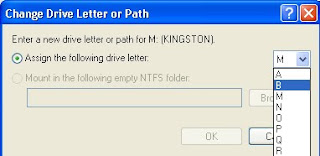
  • click [change]. In the window that appears change the drive letter to an unused letter. Click [OK], click [OK]


Now open windows explorer, flash comes with a different letter of the previous path.

How to disable Control Panel in Your computer

At this opportunity, which we will discuss about how to disable control panel. By disabling the control panel, then the command on the start menu control panel will also not be visible. Therefore, users will not be able to access the control panel, although by using the command through [Run].

For computers that use a lot of user and admin shobat is, probably a good idea to disable the control panel as well. In addition to avoiding change settings on the computer, also can be a computer security reasons. But if computers are used in private, then let the control panel remains active.

To disable the control panel can do the following steps:

1. Go to group policy editor by clicking [start] and then type gpedit.msc and press [Enter]. In windows xp can be done by [start]> [Run]> type gpedit.msc> press [enter].
2. After appearing Local Group Policy Editor window, go to the [User Configuration]> [Administrative Templates]> [Control Panel].
3. In the right pane double click on [Prohibit access to the Control Panel].

4. Set up or set on the option [Enable] and click [OK].


5. Although the control panel is not accessible, you should log off or restart your computer.

6. If we forced his way into the control panel through the [Run], it will display a notification like the following picture: This operation has been canceled due the restrictions in effect on this computer. Please contact your system administrator.


7. To restore the original condition, or to re-activate the control panel, perform steps 1 through four. Change back to the settings from enable to not configured and click [OK].

Thus the tips about how to disable control in your computer. I hope this tips will be useful for you.

Friday, March 4, 2011

How to uninstall the program in safe mode

Safe mode is one feature of the Windows operating system that is very useful to make repairs errors or problems that occur in the system, which can not be done at boot normally. The problem often faced is a problem usually associated with the virus, or system instability, computer often hangs, the computer can not boot normally. Many are recommended to perform a virus scan in safe mode condition, make changes in regedit or it could be to restore the conditions prior to the problem / damage by using system restore.

To get in on safe mode can be done by pressing the F8 key on your keyboard when the computer is booting. By using the navigation buttons or the up and down arrows select Safe Mode then hit enter.

In the safe mode, not all features and services can be run such as during normal conditions. For example, we can not uninstall a program when in safe mode. This is because computers can not access the windows installer service. If we do the uninstall command in a program in safe mode, it will display a message like the picture below.


“The windows installer service could not be accessed. …… “

to be able to uninstall the program in safe mode condition, it is necessary to do a little setting in the registry editor.

Go to the registry editor by clicking Start, then type "regedit" and press enter.

Once the registry editor window appears, go to HKEY_LOCAL_MACHINE \ SYSTEM \ CurrentControlSet \ Control \ SafeBoot \ Minimal

Right click on the folder at a minimum, then select New and click Key.


Name the key is MSIService

In the right pane double click on default and change the value data into Service


Close the registry editor window.

To enable windows installer service in safe mode, you need freeware or tools that are named SafeMSI. Download it on the link below.

After that double click on the freeware, and now you have windows installer service is active.


now you can uninstall the program in safe mode condition.
Link download SafeMSI: http://bit.ly/SafeMSI

How to disable keyboard button

At some time ago I've posted about how to lock mouse and keyboard with ease by using the tools kidkeylock. To remind me that by using the tools that we can do kidkeylock locking the mouse and keyboard with a variety of locking options. for locking the mouse we can do left click, right click and roll the middle, while on a keyboard that can be done is to lock the key or certain keys or language. If you want to see our full page mode can be opened on disabling the keyboard and mouse.

At this opportunity gretonger will present how to disable the buttons on the keyboard which of course is almost equivalent to the tools above, but there are still differences and functions. To disable the buttons on the keyboard manually we have to understand about the code map of the keyboard functions on the data value in the registry editor such as code scan code map caps lock button on the keyboard layout: 00000000 00000000 02000000 00000000 00003A00. In order not to function or change functions, the code must be changed according to the expected function. Rather than bother to think about the code, already available tools that serve to disable the buttons on the keyboard. In addition to disable the keyboard, these tools can also be to alter the function keys on the keyboard.

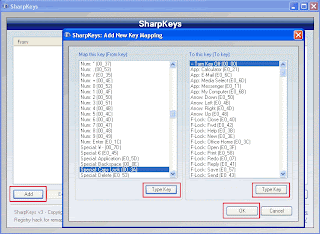
With a tool called sharpkeys, we can turn off or disable the Caps Lock, windows, Alt, Function keys (F1 through F12), the Ctrl key, numeric keys and so forth. In addition, this tool can change the keyboard function keys such as changing the functions of the Caps Lock key me.njadi letters or numbers, change the tab button to the enter key and so forth. For more details, see the following screen shot:


How to use it are as follows:

1. This tool is portable so that direct double click to run it.
2. Once open click the add.
3. In the left panel is a series of codes that the keyboard buttons will be disabled or altered function. or can simply click the type of key and press the button on the keyboard.
4. In the right panel is a series of functions to disable or change the functions of a keyboard button or click the type of key and press the button on the keyboard
5. Once selected click on the write to the registry
6. log off or restart the computer
7. To restore to its original condition, remove or delete an existing command and then click write to registry


Who want to try please download the link below:
http://nzlzp.tk/